How to set a default Markdown app on Mac
Choose which app opens your .md files when you double-click them in Finder.
When you double-click a Markdown file, macOS opens it with the app currently assigned to that file type. You can change that choice in Finder.
Set SimpleMD Viewer as the default
In SimpleMD Viewer, choose Set as Default… on the welcome screen, or select SimpleMDViewer → Set as Default Markdown Viewer… from the menu bar. Confirm the change if macOS asks.
Change the default in Finder
- In Finder, select a Markdown file ending in
.md. - Choose File → Get Info, or Control-click the file and choose Get Info.
- Expand Open with and choose the app shown as SimpleMDViewer from the menu.
- Choose Change All and confirm to use the app for files of that type.
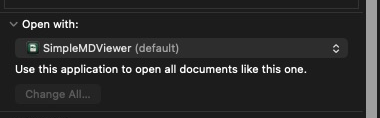
If you only want to change the selected file, don’t choose Change All. You can also Control-click a file and use Open With to choose an app just once.
What changes in Quick Look?
The button at the top of a Quick Look preview opens the file in its default app, so it should reflect your selection. The app providing the preview itself can be separate from the default app. Read more in our Finder preview guide.
Further reading: Apple Support: Choose an app to open a file.