How to open a Markdown file on Mac
A simple guide to reading .md files, from a quick preview in Finder to a dedicated reading window.
A Markdown file is a plain-text document that uses simple symbols to describe formatting. You might find one named README.md in a project folder, or receive notes and plans as a .md file.
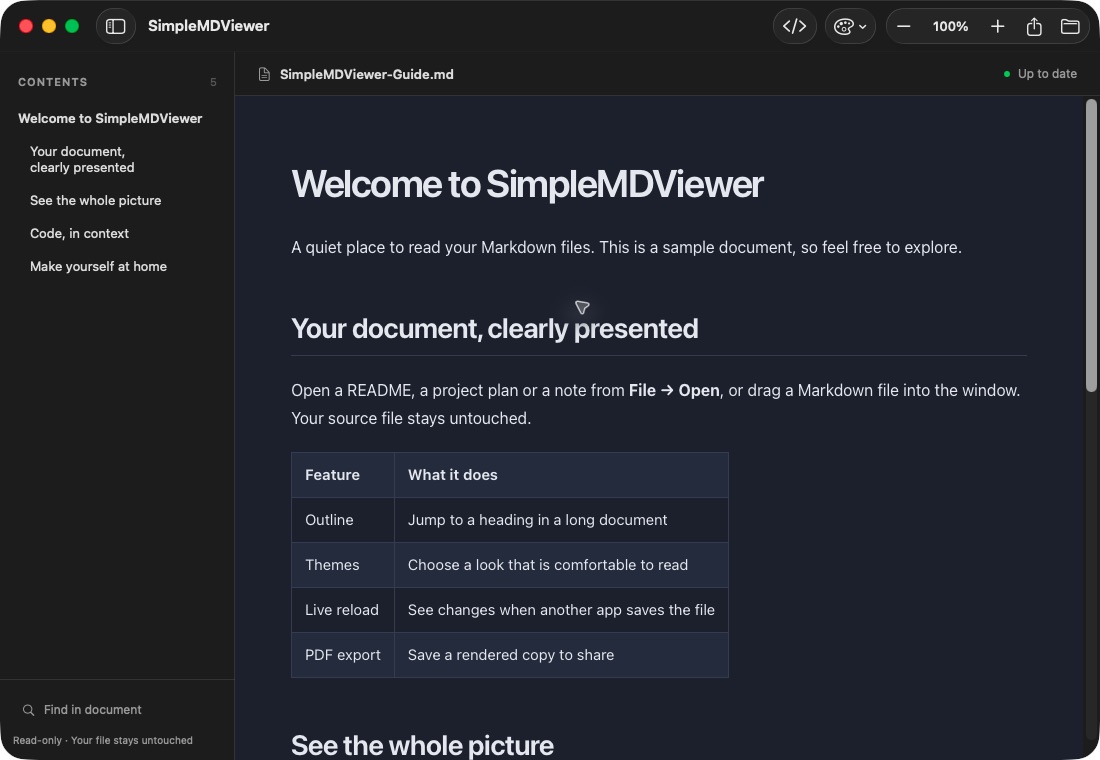
Open a file with SimpleMD Viewer
- Open SimpleMD Viewer on your Mac.
- Choose Open a Markdown file and select your document, or drag the file into the app window.
- Use the outline to move between headings, or adjust the theme and zoom for a comfortable read.
The viewer displays the formatted document while leaving the original file untouched.
Take a quick look in Finder
Select the file in Finder and press the Space bar. macOS opens a Quick Look preview; press Space again or Escape to close it. What you see depends on the preview provider available on your Mac. See our Finder preview guide for SimpleMD Viewer setup.
Prefer to see the source?
Because Markdown is plain text, you can open it in a text editor such as TextEdit. You’ll see characters such as # for headings and ** around bold text. Choose a text editor when you want to change those words; choose a viewer when you want to read the rendered result.
Choose an app for next time
Control-click the file in Finder and choose Open With to select an app for one opening. To make a lasting change, follow our guide to setting a default Markdown app.
Further reading: Apple Support: Choose an app to open a file.