How to preview Markdown files in Finder
Use Quick Look to get a fast look at your Markdown documents without opening a full window.
Quick Look is built into macOS. Select a file in Finder and press the Space bar to preview it without opening it in a separate app. Press Space again or Escape when you’re done.
Preview a Markdown file
- Find a
.mdfile in Finder and select it once. - Press Space to open Quick Look.
- Resize the preview if you need more room, then press Space or Escape to close it.
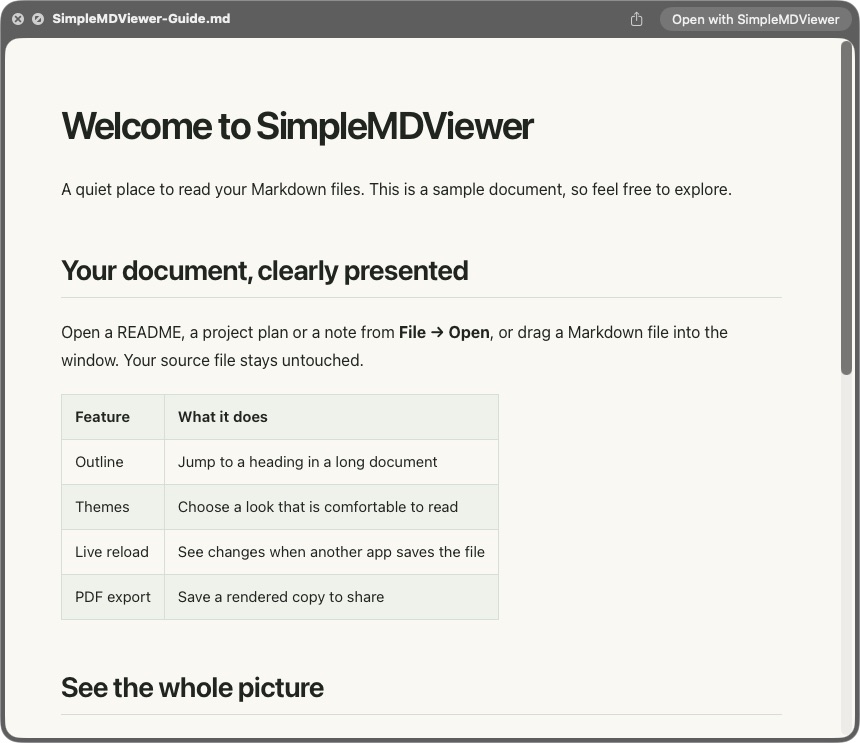
The appearance of a Markdown preview can depend on the Quick Look providers installed on your Mac. A formatted preview does not necessarily mean SimpleMD Viewer is providing it.
Enable the SimpleMD Viewer extension
SimpleMD Viewer includes a Quick Look extension for Markdown. After installing the app, open System Settings → General → Login Items & Extensions → Quick Look and enable its extension if needed. Settings names can vary between macOS versions.
Return to Finder and preview your file again. If another app still handles the preview, check your installed Quick Look extensions and macOS settings.
Open the full document
For a longer read, open the file in SimpleMD Viewer to use its document outline, search, themes and zoom. The Open with button in Quick Look follows the file’s default app; our default app guide explains how to change it.
Further reading: Apple Support: View files with Quick Look.